Time Blocking template for Kindle Scribe
A time blocking page splits your day into labeled chunks of time so every hour has a job. It helps you plan realistic days, protect focus time, and see at a glance where your hours are going. Drawn for the Kindle Scribe screen, with linked tabs where your fingers reach.
- No email or signup
- Made for Kindle Scribe
- Links work on the device
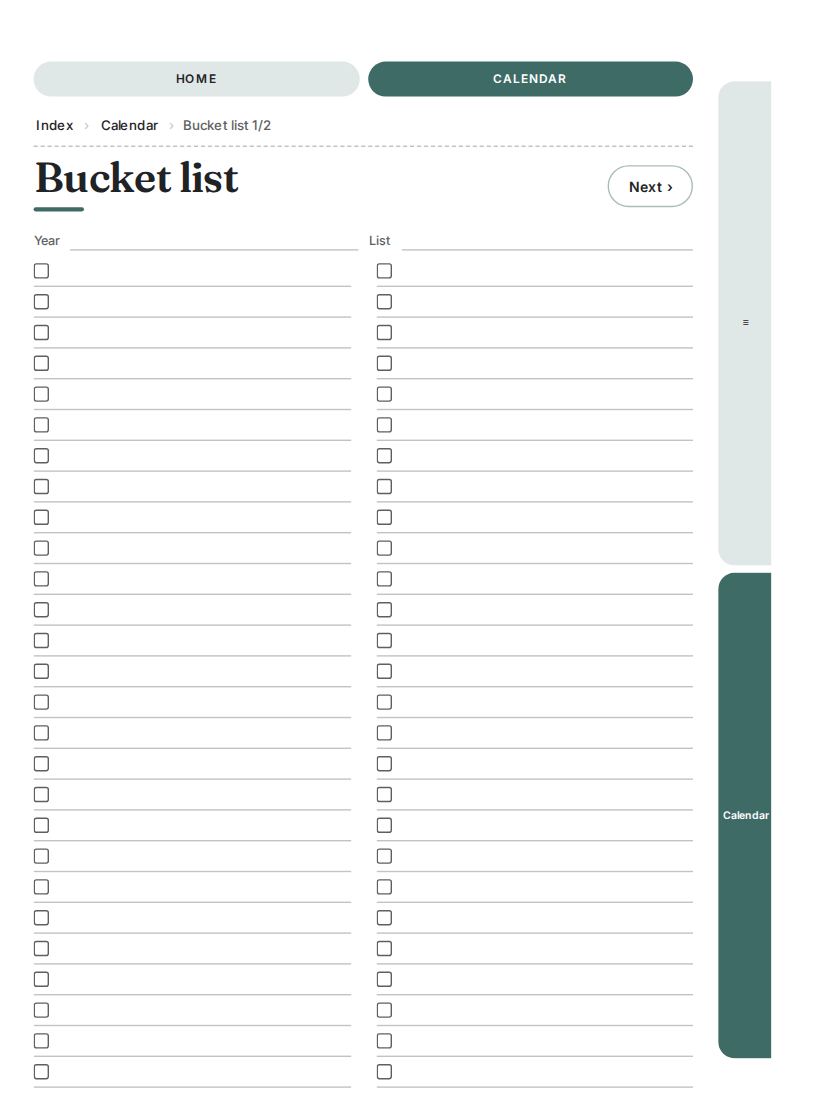
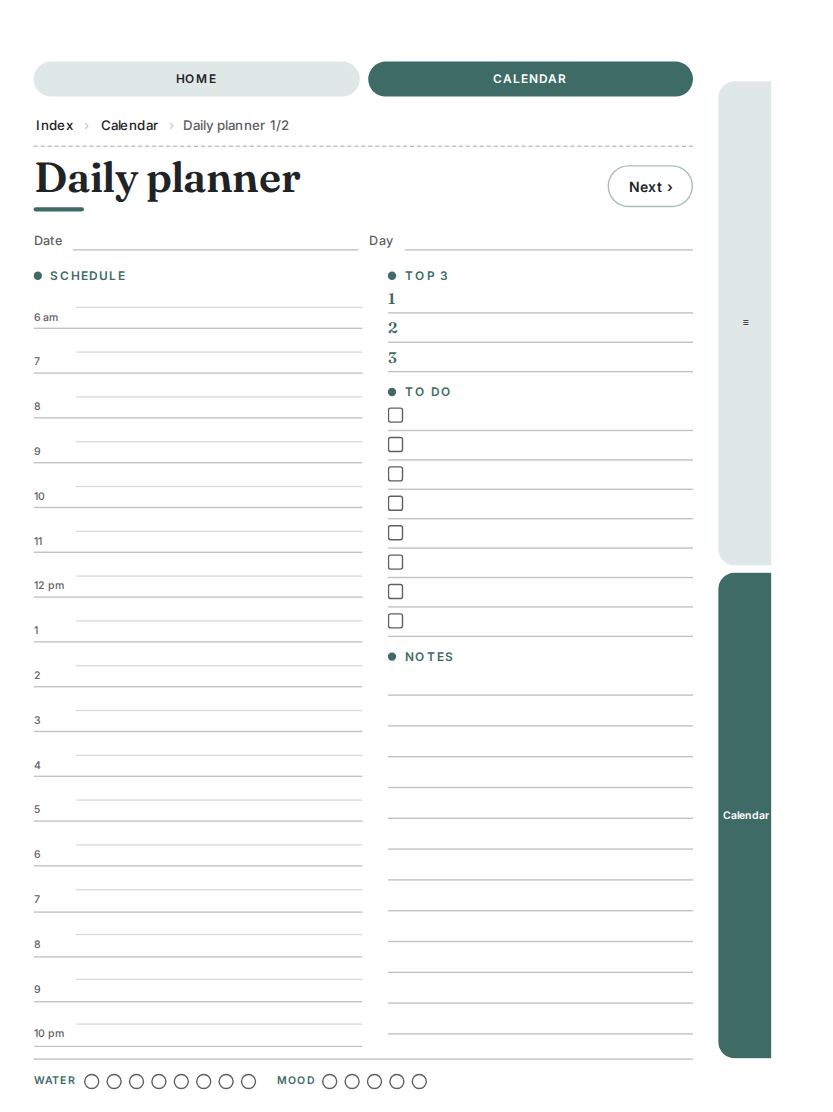
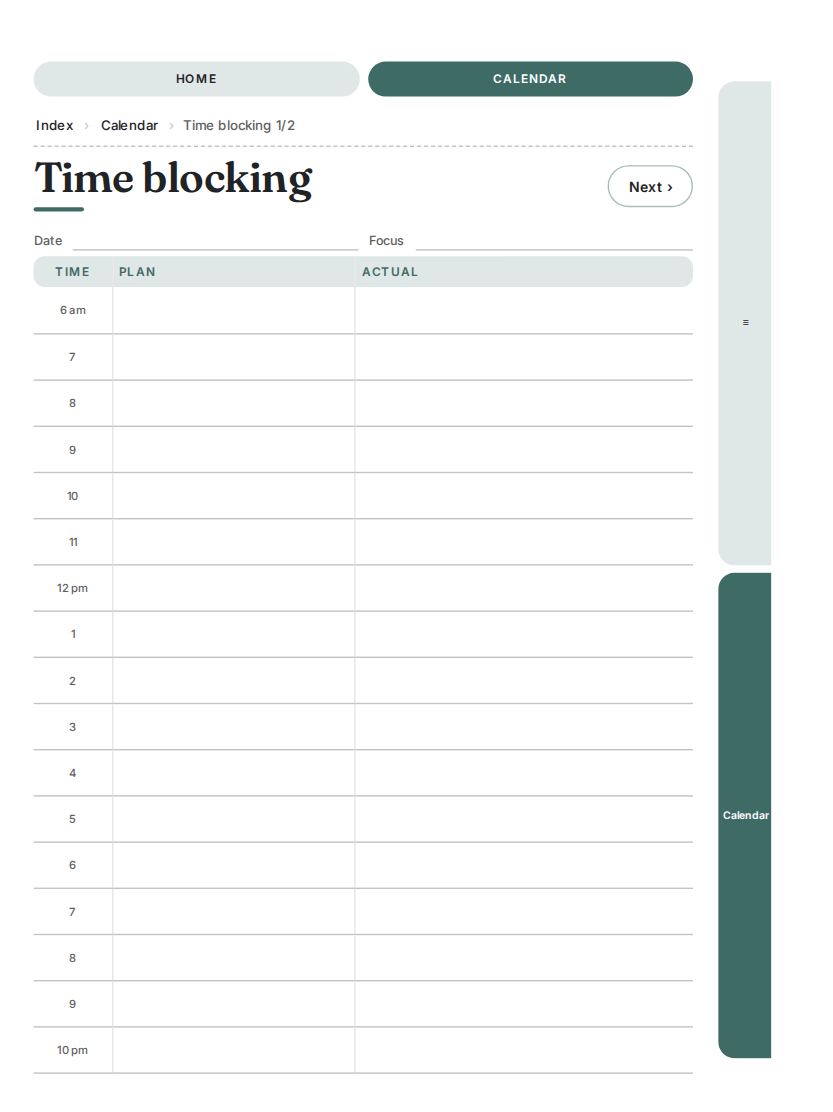
Make it yours
Pick a style, a font. The preview updates live, then download your version. Free, no email.
Style
Font
Language
Want it inside a full planner?Your style, plus calendar, daily and weekly pages, every page linked. Free preview.→What's on the page
Who it's for
Put it on your Kindle Scribe
- Open Send to Kindle (amazon.com/sendtokindle) and sign in with the Amazon account of your Kindle Scribe. The Send to Kindle desktop app and email address work too.
- Upload a PDF. PDFs are delivered as PDFs, which is what you want: you can write on every page and the links keep working.
- Open it on your Scribe from your library (it may take a few minutes to arrive; make sure Wi-Fi is on and sync).
- Write with the pen anywhere and tap any tab, date or button with your finger to jump.
Tips
More calendar & planning templates for Kindle Scribe
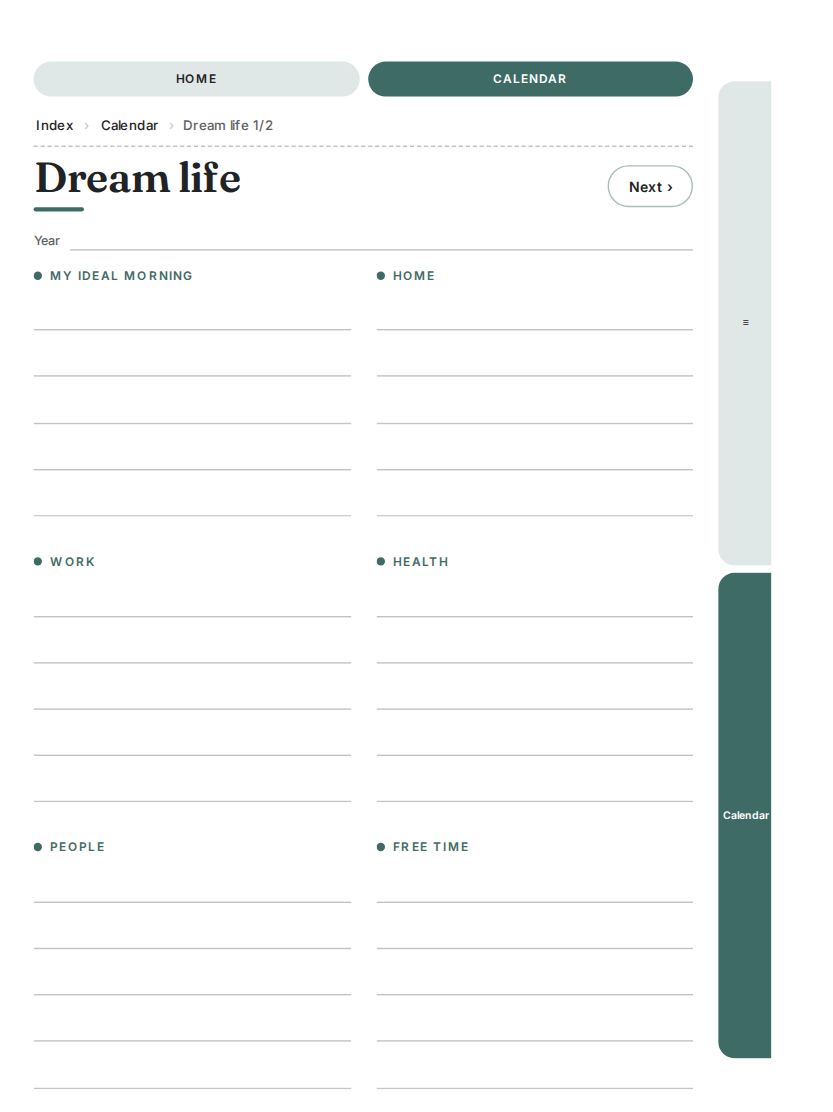 Dream Life
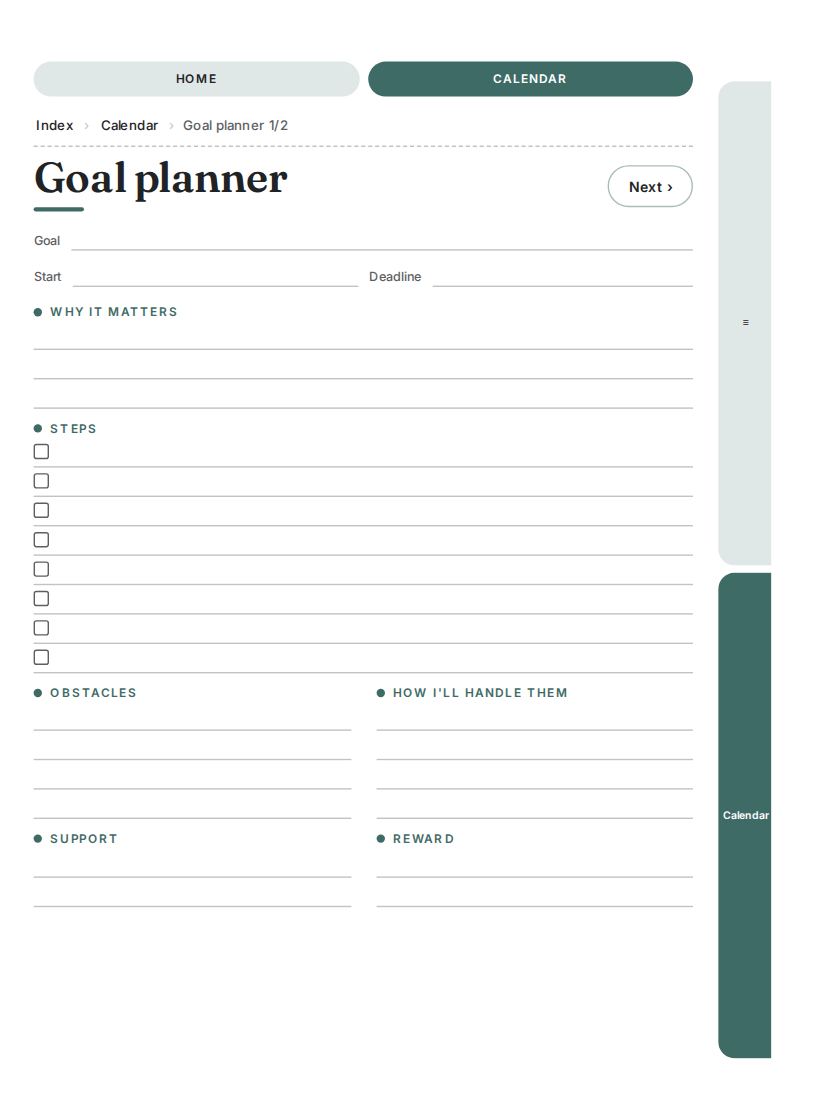 Goal Planner
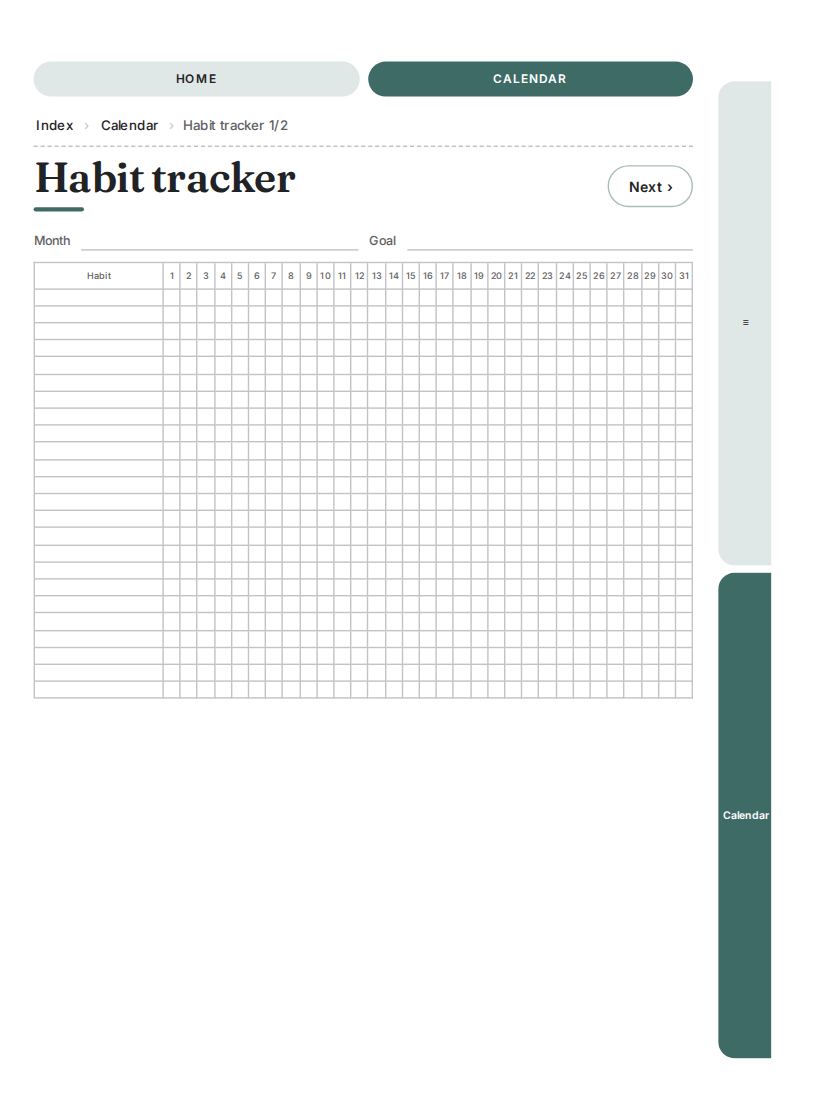 Habit Tracker
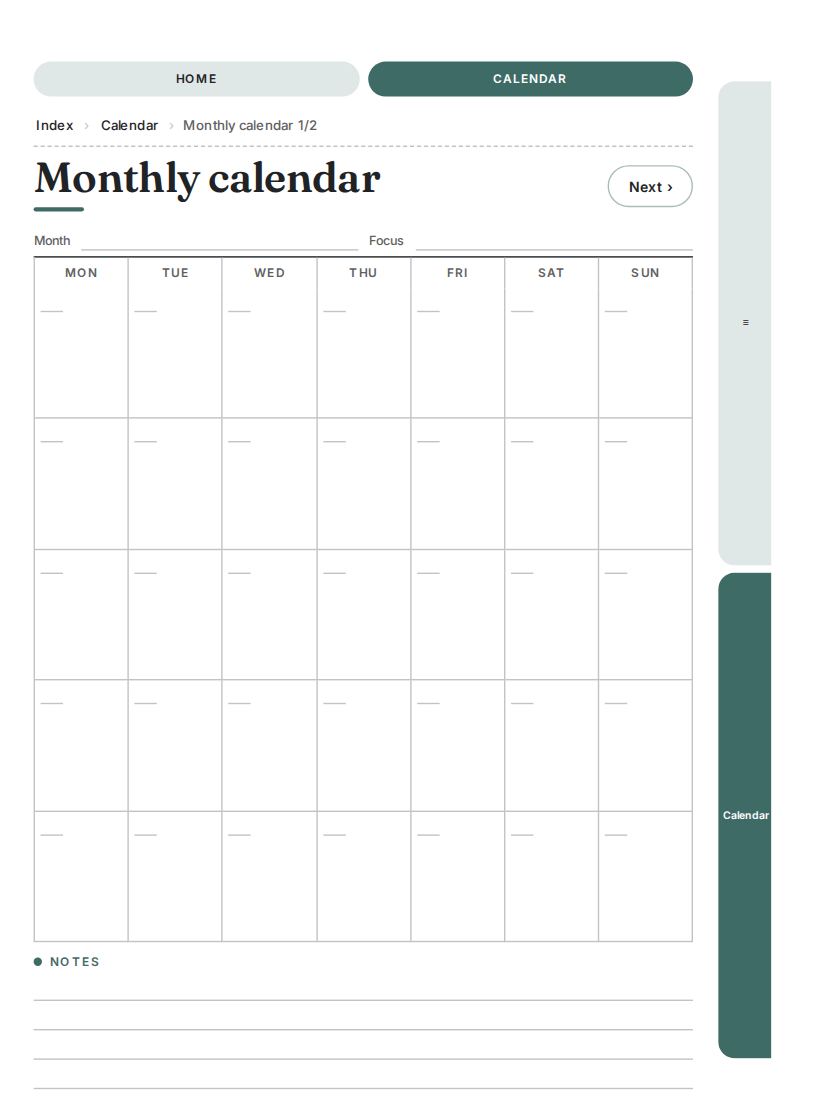 Monthly Calendar
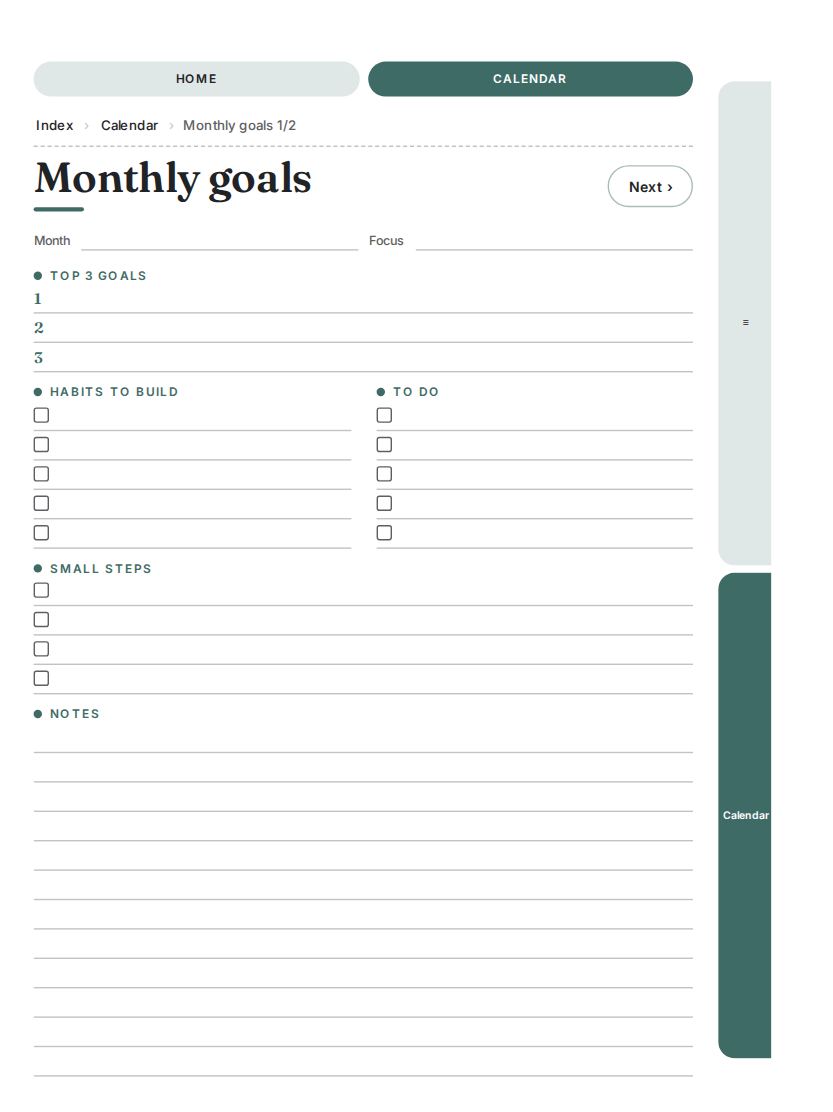 Monthly Goals
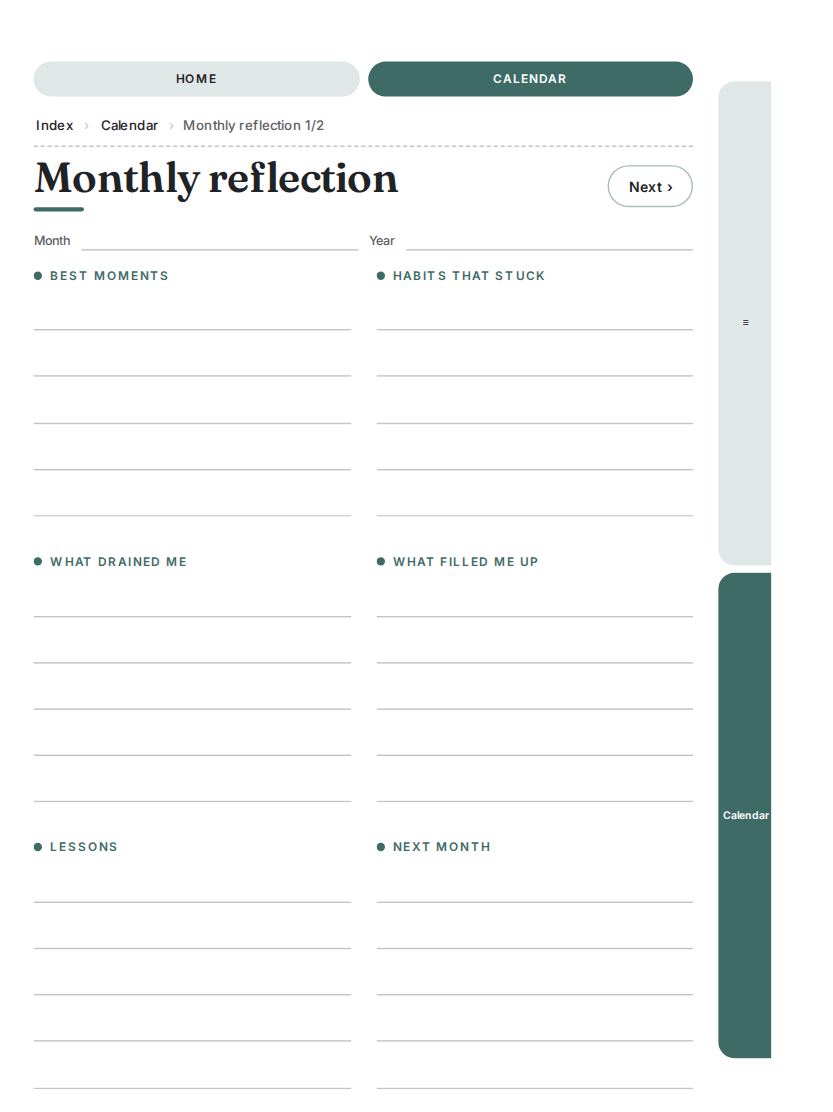 Monthly Reflection
The same template for other tablets
Want a whole planner like this?
Answer a 1-minute quiz and get every page you need, linked and drawn for your Kindle Scribe. Free preview.
Take the quiz →Questions
How do I start time blocking my day?
Begin by listing everything you need to do, then estimate how long each task will take. Place your most important tasks into the grid first, add breaks and buffer time, and fill in smaller tasks around them.
How long should a time block be?
Many people use blocks of 30 to 90 minutes, depending on the task. Short admin jobs can share one block, while focused work usually does better with a longer stretch. Adjust after a few days based on what actually fits.
What should I do when my day does not go to plan?
Cross out the block that slipped and redraw it in a later open slot. Buffer blocks help here, since they give you room to catch up without rewriting the whole day. A quick review at day's end shows which tasks need more time next try.
Will the links work on my Kindle Scribe?
Yes. The PDF is drawn for the Kindle Scribe screen and every tab and page link is a direct PDF link, which Kindle Scribe follows when you tap it. Open it as a PDF (not a converted document) so the links keep working.
Is this time blocking template really free?
Yes. Download the PDF and use it as much as you like, no email needed. If you want more pages, your own sections or a full planner around it, you can build one in Tidy Stack Planners and preview it for free.