Cornell Notes template for Kindle Scribe
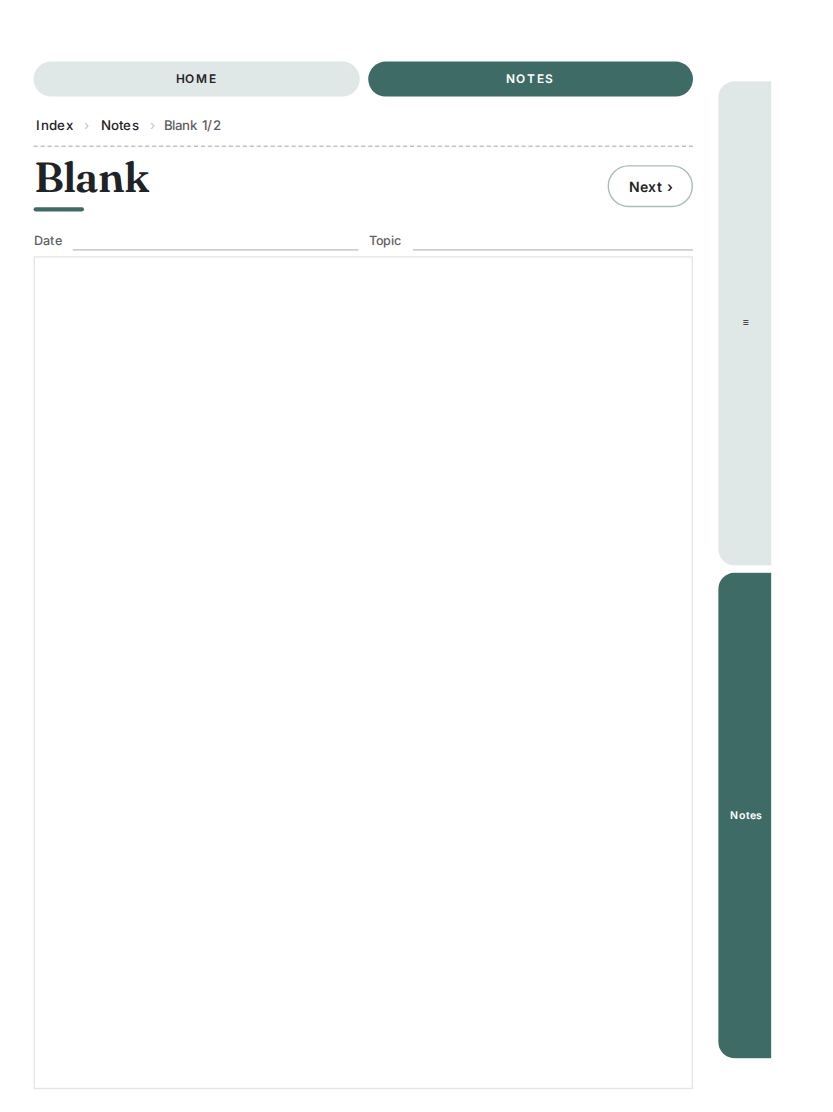
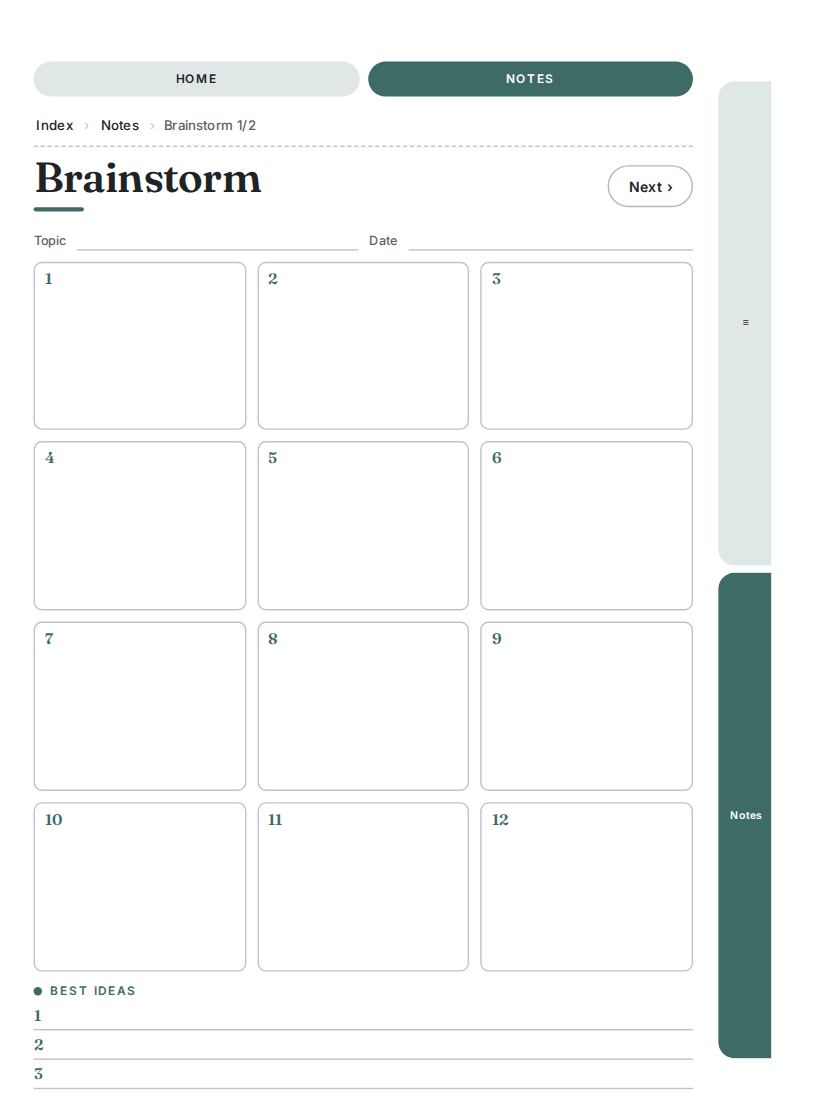
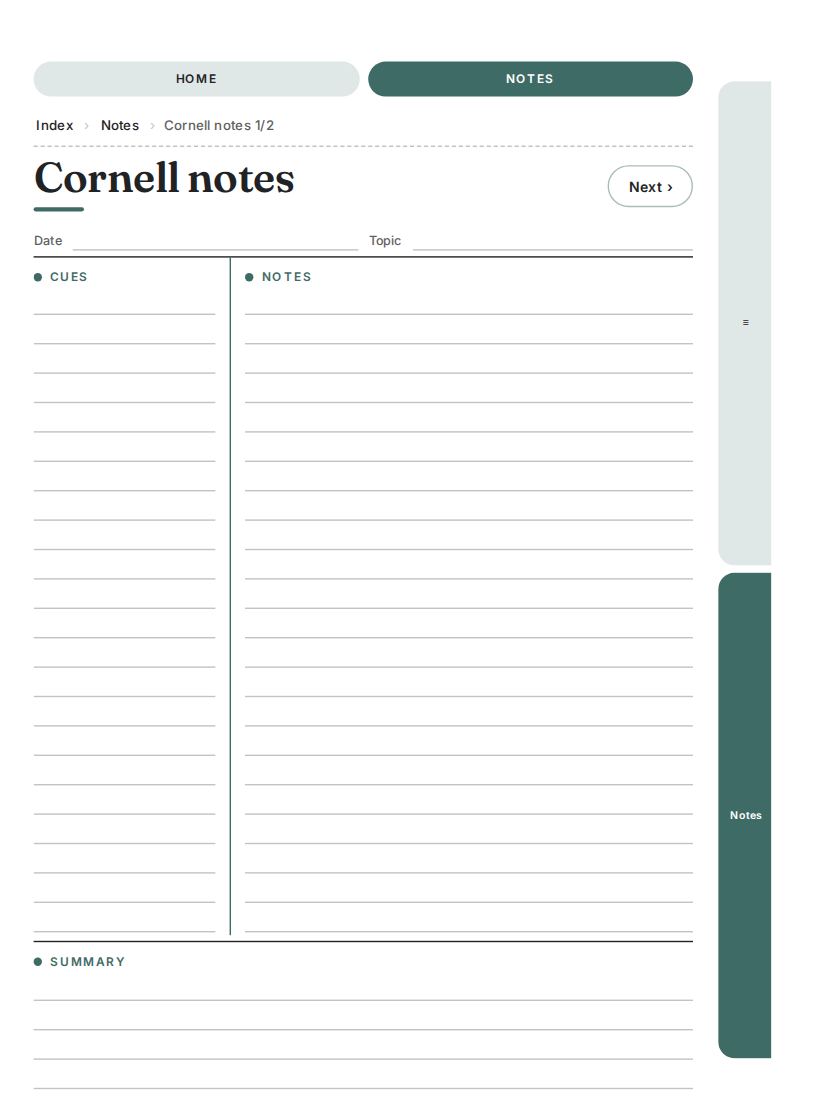
A Cornell notes page splits the sheet into a narrow cue column, a wide notes area and a summary strip along the bottom. It helps you capture a lecture or reading in one pass, then review it quickly afterwards. Drawn for the Kindle Scribe screen, with linked tabs where your fingers reach.
- No email or signup
- Made for Kindle Scribe
- Links work on the device
Make it yours
Pick a style, a font. The preview updates live, then download your version. Free, no email.
Style
Font
Language
Want it inside a full planner?Your style, plus calendar, daily and weekly pages, every page linked. Free preview.→What's on the page
Who it's for
Put it on your Kindle Scribe
- Open Send to Kindle (amazon.com/sendtokindle) and sign in with the Amazon account of your Kindle Scribe. The Send to Kindle desktop app and email address work too.
- Upload a PDF. PDFs are delivered as PDFs, which is what you want: you can write on every page and the links keep working.
- Open it on your Scribe from your library (it may take a few minutes to arrive; make sure Wi-Fi is on and sync).
- Write with the pen anywhere and tap any tab, date or button with your finger to jump.
Tips
More notes & paper templates for Kindle Scribe
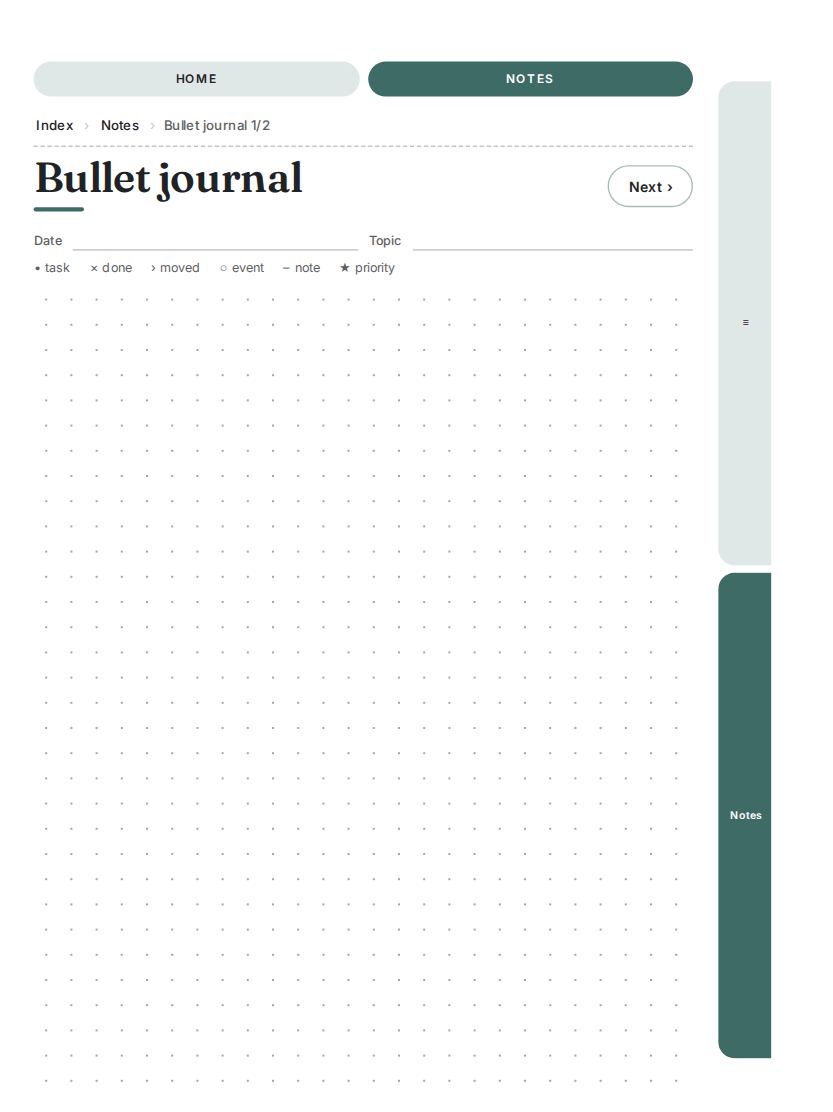 Bullet Journal
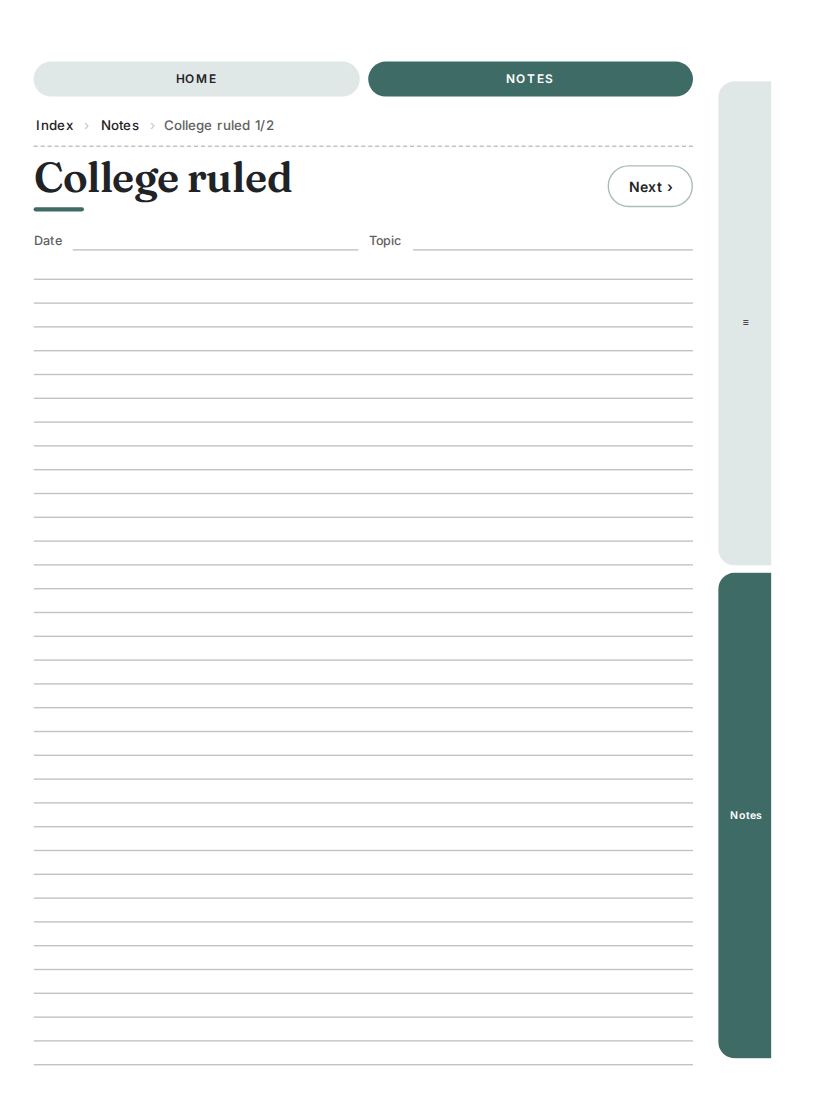 College Ruled
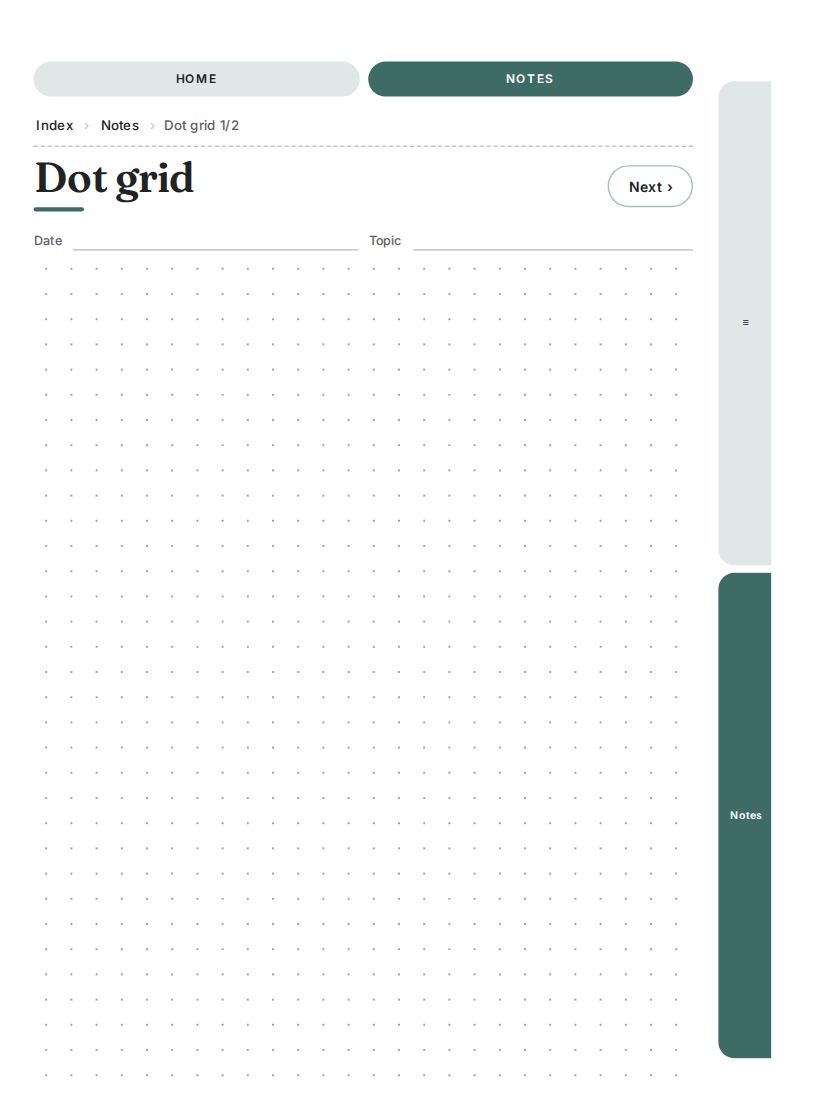 Dot Grid
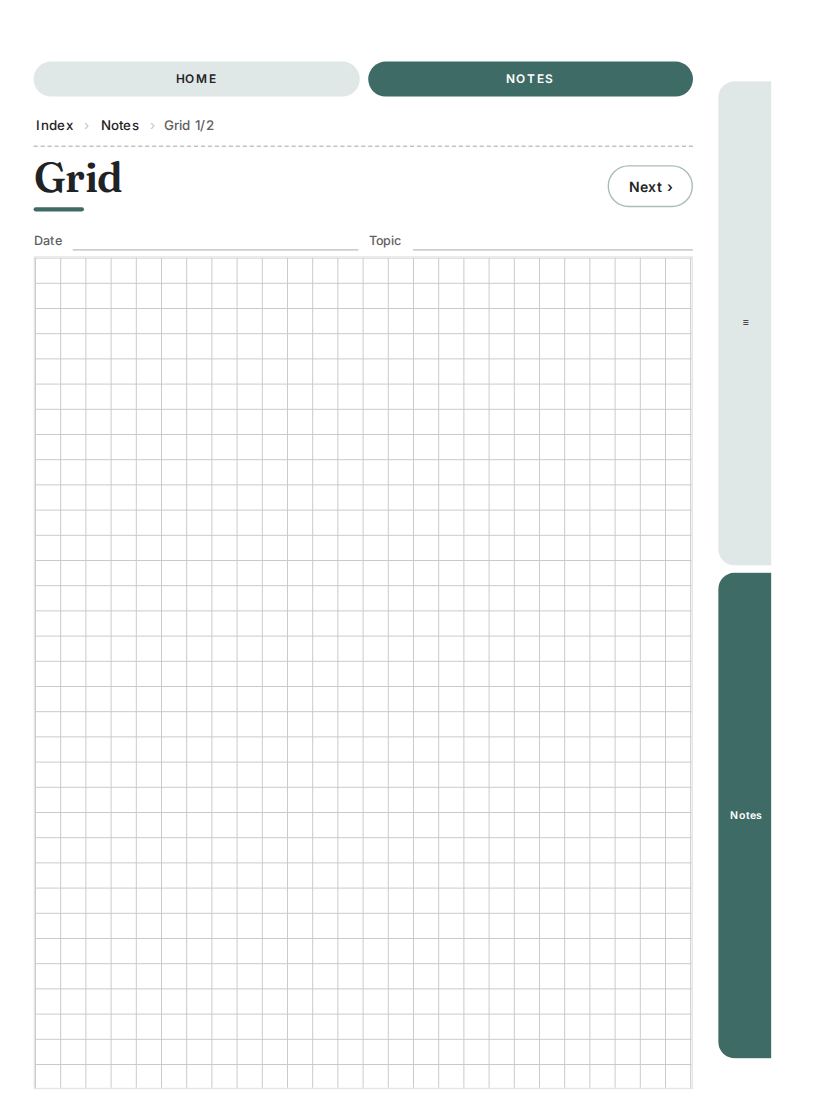 Grid
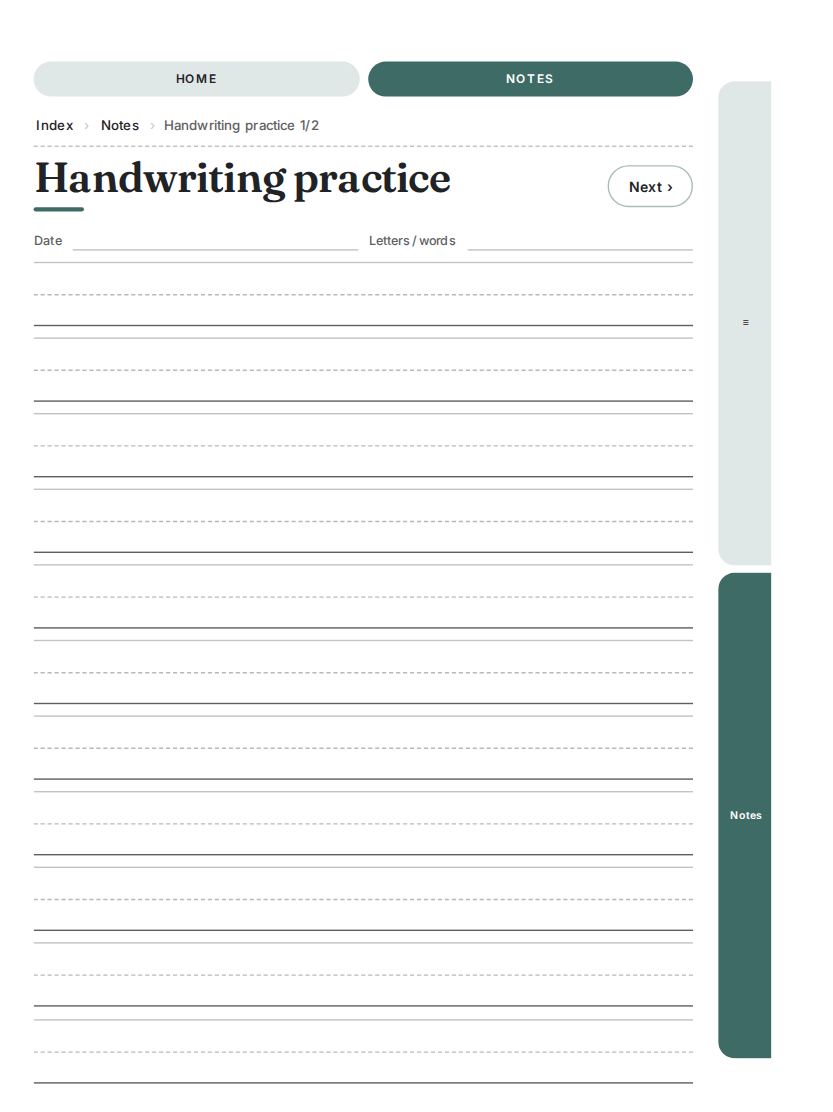 Handwriting Practice
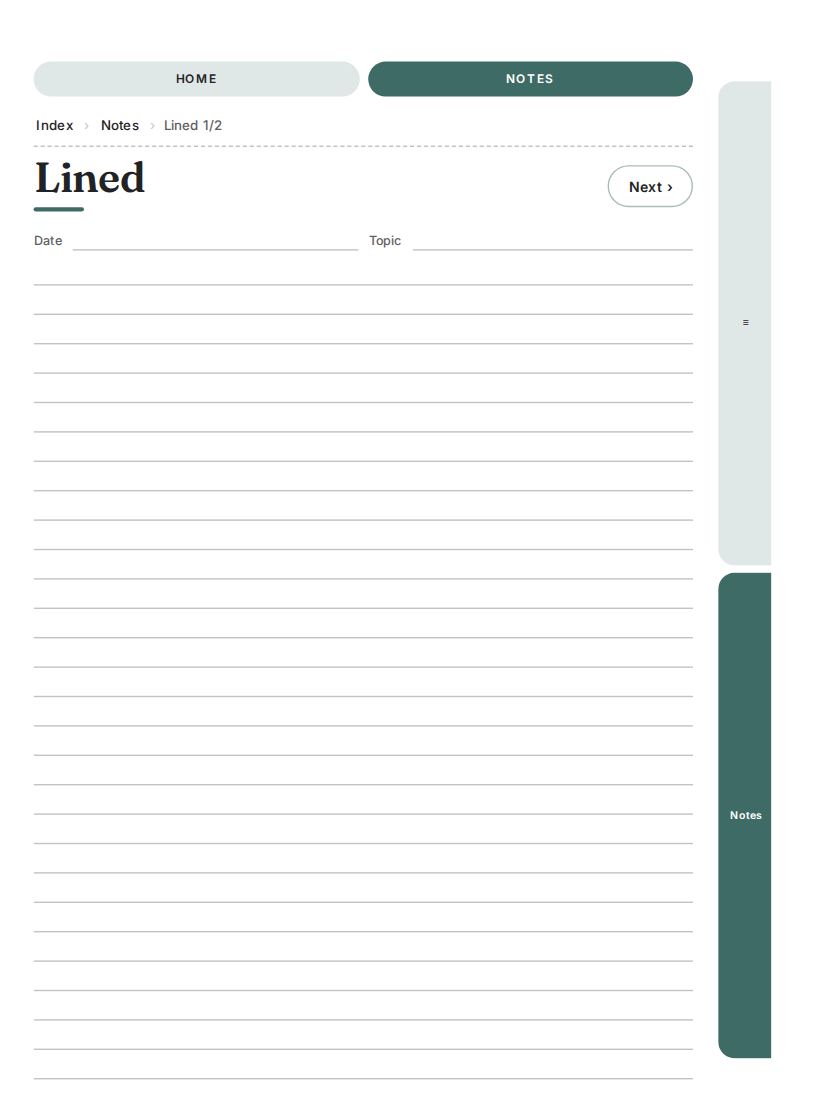 Lined
The same template for other tablets
Want a whole planner like this?
Answer a 1-minute quiz and get every page you need, linked and drawn for your Kindle Scribe. Free preview.
Take the quiz →Questions
How do you use a Cornell notes template?
Take notes in the large right-hand column while you listen or read. Afterwards, write short questions or keywords in the left cue column, then sum up the whole page in a few sentences at the bottom. When you review, cover the notes and try to answer the cues from memory.
What goes in the cue column on Cornell notes?
The cue column holds short prompts that point to your notes, such as keywords, questions, names or dates. Fill it in after the lecture, not during it, so you have to think about what mattered. It works well as a quick self-test later.
Will the links work on my Kindle Scribe?
Yes. The PDF is drawn for the Kindle Scribe screen and every tab and page link is a direct PDF link, which Kindle Scribe follows when you tap it. Open it as a PDF (not a converted document) so the links keep working.
Is this cornell notes template really free?
Yes. Download the PDF and use it as much as you like, no email needed. If you want more pages, your own sections or a full planner around it, you can build one in Tidy Stack Planners and preview it for free.